What Can NotebookLM Do
NotebookLM is one of Google’s AI products, but it approaches assistance from a fundamentally different angle using tools such as ChatGPT, Copilot, and Google’s own Gemini, which are general-purpose AI chatbots. While those tools draw on vast training data and, in many versions, live web access, NotebookLM generates its answers and outputs from sources and instructions provided by the user. Its key feature is the use of clear inline citations, which link each part of an answer back to the relevant source material and show where the information came from.
It is designed to work from your curated knowledge, such as a set of documents or selected online sources. This approach is often called grounding. It also means that when the answer is not contained in those documents, NotebookLM should indicate that, reducing the risk of AI hallucinations or overconfident responses. This single difference changes how you can work with the tool and the model, providing you with greater confidence in the final outcome.
The transparency of source-based answers, together with the ease of checking AI-generated content against its sources, allows for a higher, though never complete, level of trust. In addition, NotebookLM offers a growing range of content-creation features, from audio overviews to custom tools such as quizzes and mind maps, all grounded in your curated sources.
What NotebookLM Can’t Do
Its limitations fall into two categories: those shared by all generative AI tools, and those specific to NotebookLM itself. On the general side, the “garbage in, garbage out” principle applies firmly here. If you upload a low-quality or incomplete set of sources, as well as documents containing incorrect information, the resulting analysis will reflect that. NotebookLM cannot compensate for weak source material. Your expert judgment is needed both when selecting sources and when reviewing generated outputs. The model can also occasionally misrepresent nuance when synthesising information across multiple sources. That is why a general rule for working with generative AI tools applies here too: treat every output as a first draft to be fact-checked and reviewed by a human.
On the data privacy and security side, non-governmental and civil society organisations often handle sensitive information, such as the personal data of beneficiaries, volunteers, or employees. NotebookLM is not a suitable tool for this type of content. Documents containing personal data, medical information, or other confidential information protected under GDPR and other privacy regulations should not be uploaded. As with other cloud-based AI tools, there may be limited technical and legal control over data processing, including the possible use of user inputs to further train AI models. This creates not only a risk of data breaches, but also newer types of risk, such as the potential extraction of such data from AI models.
Tool-specific limitations are mostly connected to how NotebookLM fits within the Google ecosystem. It requires a Google account and runs in the cloud, meaning that any data you upload is processed on Google’s servers. The free version also has source limits, currently up to 50 sources per notebook, as well as usage limits that may be restrictive for professional use cases. While there are some limited options to connect NotebookLM with more powerful Gemini models through the Google Gemini interface, the main model used in NotebookLM is not as powerful or flexible as multipurpose, multimodal chatbots. For example, it cannot independently analyse images, including images embedded in PDFs.
Languages should also be a consideration for users, although more and more are becoming available. NotebookLM can read and process documents in many languages, including Arabic, Polish, Swahili, and almost 80 others. However, some Studio outputs, particularly Audio and Video Overviews, may have more limited language support. They tend to work best in English and may produce lower-quality results or offer fewer options in other languages.
How to Use NotebookLM
The interface is built around three panels, each serving a distinct purpose. The left panel is Sources, where you upload and manage the documents, links, and files that form your knowledge base. From there, you can also use Gemini-assisted search to discover new sources. The centre panel is Chat, where you ask questions and receive answers grounded in those sources. The right panel is Studio, where you generate structured outputs such as audio overviews, video overviews, briefing documents, and FAQs. The right panel also serves as a place to manage notes, including responses you want to save for later or add to your sources.
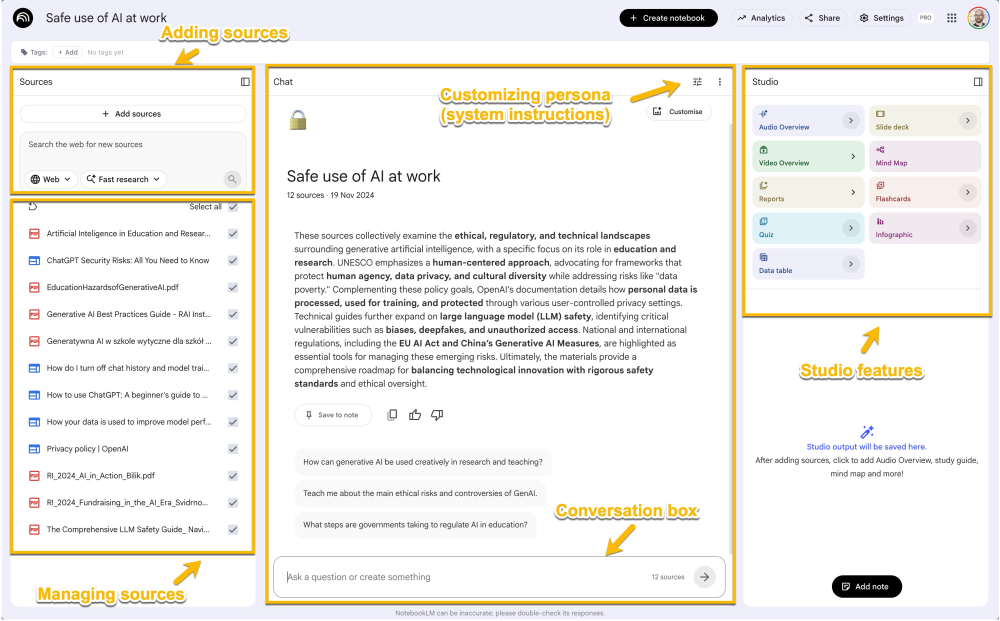
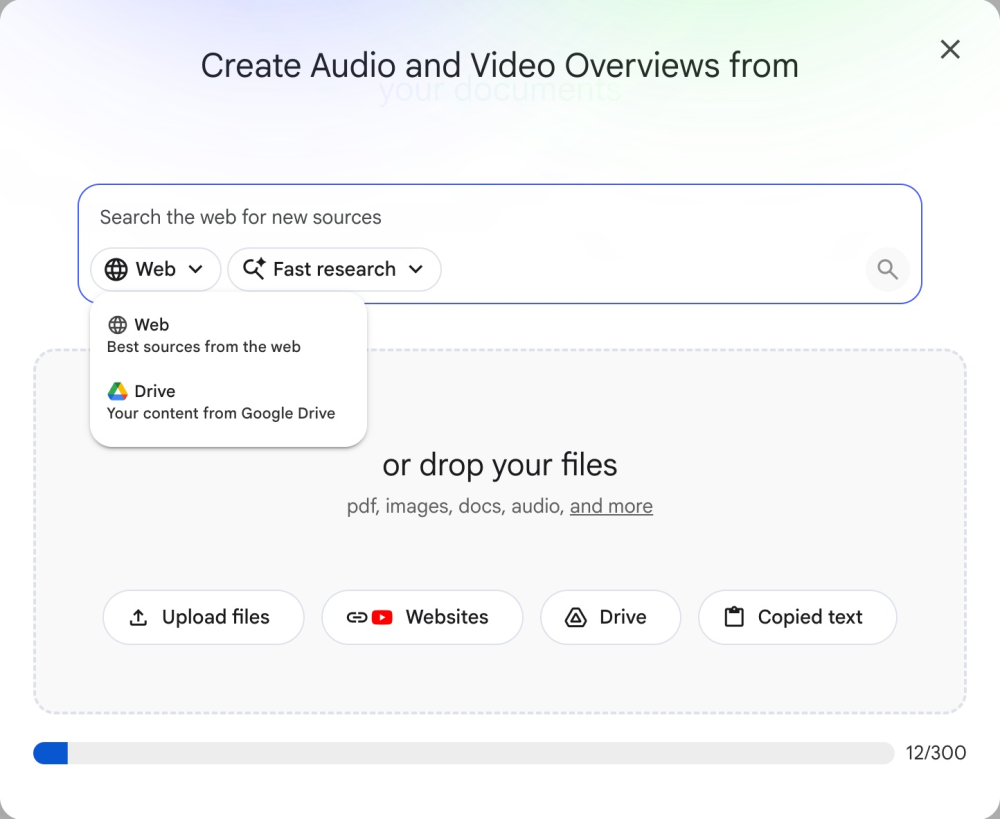
Sources
Materials: In the Sources panel, NotebookLM allows you to add a range of documents, including text files, Google Drive files, Google Docs, PDFs, TXT files, Google Slides, and links to YouTube videos. Once you upload them, and after a short processing period during which videos and audio are transcribed, the tool can start answering questions and responding to prompts.
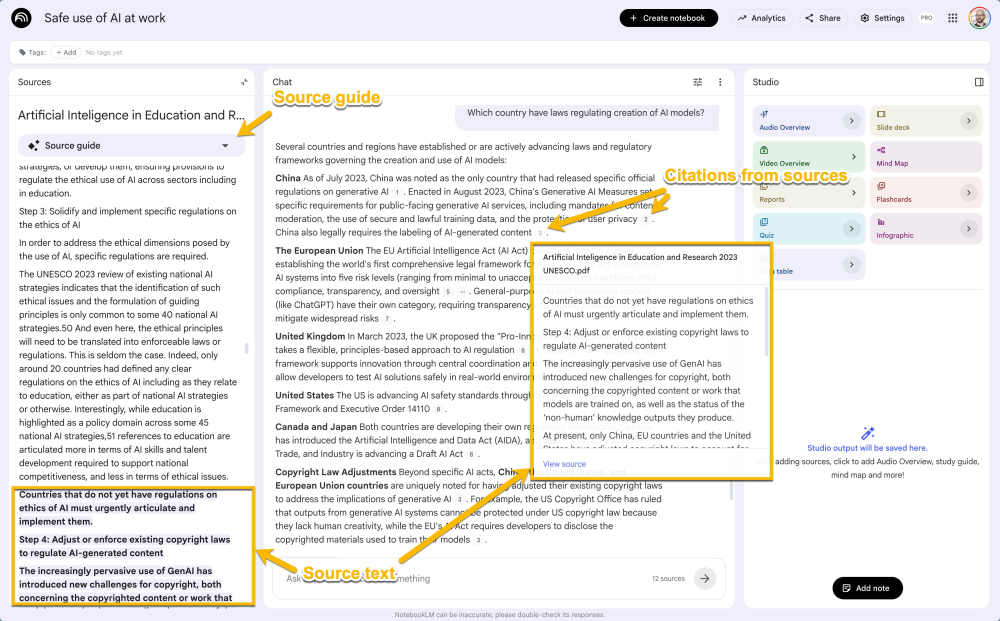
Source Guide: Each source has its own Source Guide, which you can access by clicking on the source. This is an auto-generated summary of that document, and it is worth reading before you start prompting. It gives you a quick way to check whether the tool has correctly understood the content of each file.
Managing Sources: You can also remove files from your sources or turn individual files on and off to narrow the scope of the conversation to specific materials within the wider knowledge base.
Chat Panel
Citations: small-numbered references (in every answer) that link directly back to the specific passages in your source documents on which the answer is based. By clicking a citation, you can navigate to the relevant passage, verify whether the answer is correct, and use the source information as a citation outside the tool.
Instructions: NotebookLM offers two ways to give it instructions. Notebook-level customisation lets you click the adjustment icon at the top right of the Chat panel to open the “Configure Chat” panel. There, you can select Custom mode and enter system instructions of up to 10,000 characters. This setting applies to every conversation and to all Studio outputs. You can also choose presets such as Default and Learning Guide, and adjust the response length. One-off instructions typed directly into the chat box affect only the current response, as they would in any other AI chatbot.
The Studio Panel
The Studio panel is where NotebookLM adds new tools for communicating and sharing knowledge based on your sources and conversations.
Overviews: You can generate an Audio Overview, which is a synthesised podcast-style conversation between two AI hosts discussing your sources, or a Video Overview, which provides an animated visual summary.
Other Formats: You can also create various report formats, including FAQs, which are useful for onboarding and similar scenarios, as well as Briefing Documents and Study Guides. Mind maps are useful for exploring topics within your sources.
Complex Formats (Limitations): Infographics, which are based on image-generation models, and data tables are more complex. While they can produce impressive outputs, it is worth customising them with prompts before generating the final version, especially because multimedia outputs are limited in free-tier accounts.
Why and How to Use NotebookLM in Organizations
Every organization accumulates a significant amount of written knowledge over time: reports, evaluations, grant applications, strategy documents, board minutes, training materials, and policies. NotebookLM can improve both research and the reuse of information contained in these sources.
In practice, you can understand a report’s key themes and conclusions in minutes, rather than spending hours reading it in full, while still being able to check whether the AI-generated answers match the source material.
The tool becomes especially powerful when working with multiple sources. You can upload ten documents from different years, written by different authors and in different formats, and query all of them simultaneously. Once you have detailed, well-grounded answers or data, you can move the output to other AI tools with stronger writing capabilities for further refinement.
Use Case: Working on a Grant Proposal
A typical use case for NotebookLM would be to upload grant documentation, such as calls for proposals, guidance documents, terms and conditions, and related materials, alongside your own notes, previous grant proposals, or program descriptions. With these sources in place, you can use NotebookLM to check the alignment between program activities, timelines, and the requirements of a new grant application, or to analyse previous reports and extract comparative data.
Video 1: How to Use NotebookLM in Civil Society Organizations: Writing a Grant Proposal

Functional cookies are not allowed. Please change your cookie settings to watch the video.
Accept cookiesUse Case: Developing onboarding materials for volunteers
Studio capabilities, on the other hand, can provide an easy way to create multiple formats for sharing knowledge internally, including onboarding materials, training resources, and other learning content. While Audio Overviews may be the feature that attracts the most attention, it is worth starting with the learning need itself: what does your audience need to understand, practise, or remember? Based on that, you can generate different formats for various purposes, such as audio summaries, visual explanations, or knowledge-checking activities.
It is also worth noting that notebooks can be shared, allowing multiple team members to work with the same set of documents. You can share a collaboration link with others in your organisation, so you do not need to exchange individual files and can analyse the material together.
Video 2: How to use NotebookLM in Civil Society Organizations: Onboarding Volunteers
Functional cookies are not allowed. Please change your cookie settings to watch the video.
Accept cookiesHands-on Exercise: Try It Yourself and Learn How to Assess the Results
Here is an additional practice exercise that you can also use as a checklist for critically assessing NotebookLM outputs. This is the skill that makes every subsequent use of the tool more reliable.
Step 1: Build the Notebook and Check the Source Guide
Start with a set of publicly available documents, such as your organisation’s publications or data. Upload the documents to NotebookLM. Before typing anything into the chat, open the Source Guide for each file and read the auto-generated summary.
This is your first quality check: does the summary accurately reflect what the document actually says? Are there any sections that seem to have been missed, misunderstood, or misread?
Tip: Before uploading, use a general AI tool such as Gemini to run a quick check on any external sources you plan to include, such as research reports, statistics, or policy documents. Ask whether the document is still considered relevant in your field, and whether there are newer or more authoritative sources worth adding.
A notebook built on outdated or incomplete sources will produce outdated or incomplete answers, and that problem may not be obvious once you are working inside the tool.
End Notes
NotebookLM is updated frequently, so if something described in this tutorial looks different when you open it, check the official release notes.
Before using it in any funded project or formal deliverable, check whether your funder and your own organisation have an AI use policy. An increasing number of public funders require disclosure of AI use, and some may restrict or prohibit its use in applications.
Use the tool for tasks where it genuinely helps and improves your work. Fully automating critical tasks, such as writing grant proposals, risks over-reliance on AI can lead to losing the critical thinking skills required for this type of work.
Step 2: Ask the Test Questions
Ask for something specific that you already know is included in one of your documents, so you can compare NotebookLM’s citation with your own knowledge and the source file itself. Look not only for similar wording, but also for accurate conclusions and any flattened or missing nuance that may be important to your work.
Ask the model to connect information across multiple documents. For example: “How does the approach described in the strategy document compare with what was actually implemented, according to the evaluation report?”
Read the answer sceptically, again looking for missing nuance, unsupported claims, or contradictions between the documents and NotebookLM’s answer. If you are not satisfied, use this as the basis for more specific prompts and feedback to the model.
Tip: If you know your documents contain contradictions or differences that you want or need to explore, be very specific about this. For example: “Do any of the uploaded documents contradict each other on this topic?” Most LLMs tend to flatten tensions unless they are explicitly prompted to look for them.
Ask something that you know is not included in any of the uploaded documents. NotebookLM should clearly tell you that the information is not available in its sources.
Step 3: Generate a Studio Output and Compare It to Your Sources
Generate a Mind Map or Briefing Document from Studio. Before reading the output, write down three to five things you would expect it to cover, based on your own knowledge of the documents. Then read the output and compare it with your expectations.
Pay particular attention to the absence of specific topics or facts and use this as feedback when prompting NotebookLM with further instructions.
Step 4: Use Another Tool to Test the Output (for External Sources Only)
When working with public sources, paste the Studio output into another LLM, such as Gemini, using a prompt like this:
"Read the following document. List any claims that seem vague or unsupported, and flag any important questions a reader might have that this document does not answer. Research data and facts mentioned, and provide sources that confirm or contradict them."
Use the response as a review. Do the gaps identified correspond to things that were present in your sources but not captured by NotebookLM?
Step 5: Never Forget about Your Own Critical Thinking
Think of yourself not as someone checking whether the AI has done its job, but as someone responsible for the content and for any actions or decisions later made on the basis of that AI output. NotebookLM, or any other LLM-based tool, cannot know that the evaluation report you uploaded was written under pressure and may contain incorrect data or questionable conclusions. It cannot know that the strategy document reflects a direction the organisation has since moved away from. Your institutional memory, relational context, and professional judgment are critical.
Your Feedback Matters
What did you think of this tutorial? Take 30 seconds to share your feedback and help us create meaningful content for civil society!

Disclaimers
This piece of resources has been created as part of the AI for Social Change project within TechSoup's Digital Activism Program, with support from Google.org.
The author used AI to create this content. However, the entire article was created, revised, and reviewed by the author and the TechSoup team.
AI tools are evolving rapidly, and while we do our best to ensure the validity of the content we provide, sometimes some elements may no longer be up to date. If you notice that a piece of information is outdated, please let us know at content@techsoup.org.