In the previous article on prompting for CSO fundraising, we established that structure is what separates useful AI output from an AI slop. If you followed along, you now know how to write prompts that give AI the right role, objective, methodology, constraints, and verification criteria, and how that structure produces outputs worth actually using.
The AI prompting framework still applies here. In fact, you'll see it again shortly.
But first, a wider view. Because prompting, even excellent prompting, has its limits. Every time you open a chatbot interface, write a prompt, and copy the result somewhere useful, you are the engine. AI accelerates individual tasks. Your time and attention are required for every single one.
There are two more levels worth understanding.
Three ways to use AI in your organization
Level 1: Conversational AI. You interact with a chatbot directly. You write a prompt, AI responds, you use the output. Useful for drafting, research, translation, and analysis. Requires your involvement every time.
Level 2: Automations. Predefined workflows that run on their own once a specific condition is met. They follow a fixed sequence of steps, and AI can support some of those steps. Useful for repetitive tasks such as processing forms, drafting replies, updating spreadsheets, routing requests, and creating regular digests. Requires your involvement in setup and review, but not in starting the task every time.
Level 3: Agents. AI systems that work toward a goal instead of simply following a fixed sequence of steps. They can decide what to do next, use tools, adapt when something fails, and retry until they reach a result. Useful for complex, multi-step work such as research, monitoring, comparison, planning, and preparing briefs. Requires your involvement in setting goals, defining boundaries, and checking important decisions, but not in guiding every step.
For now, Level 2 is where CSOs can get real, immediate value without real, immediate risk.
What an automation actually is
Before choosing a tool, it helps to understand the underlying logic. Any automation is a workflow: a sequence of steps that runs automatically once something triggers it.
Six concepts apply across every platform and every workflow you will ever build.
Trigger: the event that starts the process, such as an incoming email, a form submission, or a time of day.
Workflow: the full sequence of steps that follow, for example, checking whether an email matches certain criteria, extracting key information, drafting a response, and saving a record of the interaction.
Inputs: the data the automation needs to operate, usually drawn from the trigger itself but sometimes collected from additional sources along the way, such as the sender’s email address, donation amount and date, supporter's name, or text from a submitted document.
Logic: determines what happens at each step, including if/then conditions, filters, and rules that route the workflow depending on what the inputs contain.
Actions: the specific things the automation does, such as writing a row to a spreadsheet, generating a draft, or sending a message.
Output: the final result, for instance, the email that gets drafted, the record that gets created, or the digest that arrives each morning.
AI enters this structure as an intelligent logic layer. Where a standard automation can apply simple rules: "if the subject line contains the word 'invoice,' move to this folder". AI can read unstructured text, extract specific data from it, classify it, summarize it, and generate new content in response. That combination is what makes AI-powered automations qualitatively different from basic workflow software. The trigger still fires the same way. What happens in between becomes considerably more capable.
Before you automate anything, standardize it
Here is where most organizations get stuck before they even open an automation tool.
AI automations work when there is a clear, repeatable workflow underneath them. The trigger is defined. The steps are consistent. The output is predictable. But many nonprofits (especially smaller and mid-sized ones where each staff member covers several roles) do not actually operate that way. They may have a document somewhere called "procedures," but in practice, things get done ad hoc, differently each time.
You cannot automate a process that does not exist in a stable form. If the steps vary every time, the automation will either break or produce inconsistent results, and you will spend more time troubleshooting it than the manual version ever cost you.
The practical sequence is: standardize first, then automate.
The next common failure is scope. CSOs often try to automate large, complex core workflows first, the beneficiary intake, grant reporting, program monitoring. The appeal makes sense: that is where the most time goes. But those processes involve the most edge cases and the highest cost when something goes wrong. Automating them before developing basic instinct leads to bloated, fragile workflows that erode trust in the whole approach.
Start with tasks with low-risk errors. Four types work well as first automations:
Data preparation. Instead of manually copying numbers across spreadsheets for a donor report, an automation gathers the data into one clean table.
Synthesis and summarization. A daily funding digest, assembled from several sources and delivered to your chat app each morning.
Quality assurance. An automation reviews new supporter entries to flag missing emails or duplicates before the error compounds.
Handoffs and coordination. When a donation arrives, an automation drafts the follow-up and notifies the relevant team member.
Build the instinct on edges first, then bring it closer to the core.
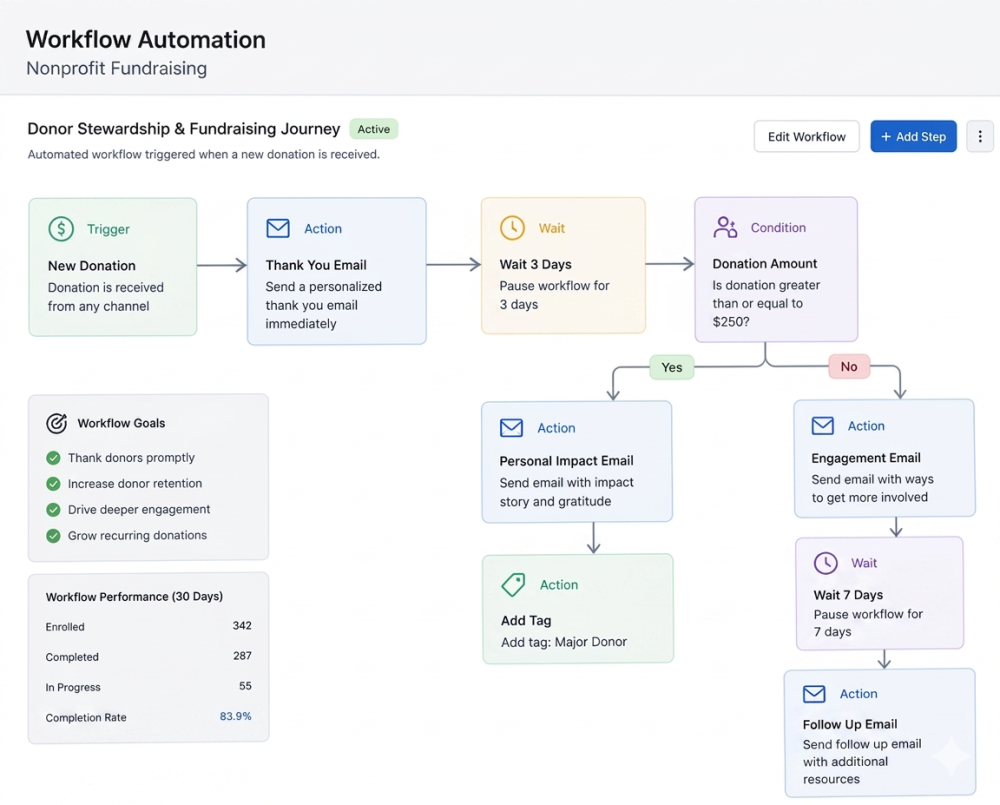 Image generated with ChatGPT
Choosing the right automation tool
The main automation platforms are n8n, ActivePieces, Zapier, Make.com, and the recently launched Google Workspace Studio. They differ on three axes: whether they are open-source or proprietary, whether they can be self-hosted or only run in the cloud, and whether they are accessible to non-technical users or require technical setup.
n8n and ActivePieces are also open-source and can be self-hosted, which appeals to organizations with in-house technical capacity. Zapier and Make.com are closed, cloud-only platforms that trade flexibility for accessibility. Zapier is the easiest entry point; Make.com offers more branching logic for users willing to invest more setup time.
This article focuses on Google Workspace Studio. It has genuine limitations (no working in loops, no scheduling, limited web browsing), and we'll name them as they come up. But for a Workspace use CSO, it is the best starting point to build instinct and experience with automations. It sits inside tools your team already uses. No new account, no new vendor relationship, no integration to configure. When something breaks during testing, and something will, the friction to fix it is low.
One practical note: Workspace Studio is available on the Business Standard package for nonprofits through Google for Nonprofits. It is not included in the free tier. If your organization is on Workspace's free nonprofit plan, you will need to upgrade to use it.
[Update (22.09.2026): Google has expanded Workspace Studio availability since its initial launch. It is now available across multiple Google Workspace Business and Enterprise plans, although nonprofit eligibility and feature availability can vary by edition. Before building workflows, check your current Google Workspace subscription or Google for Nonprofits dashboard to confirm access to Studio and Gemini-powered features. Check here for more information]
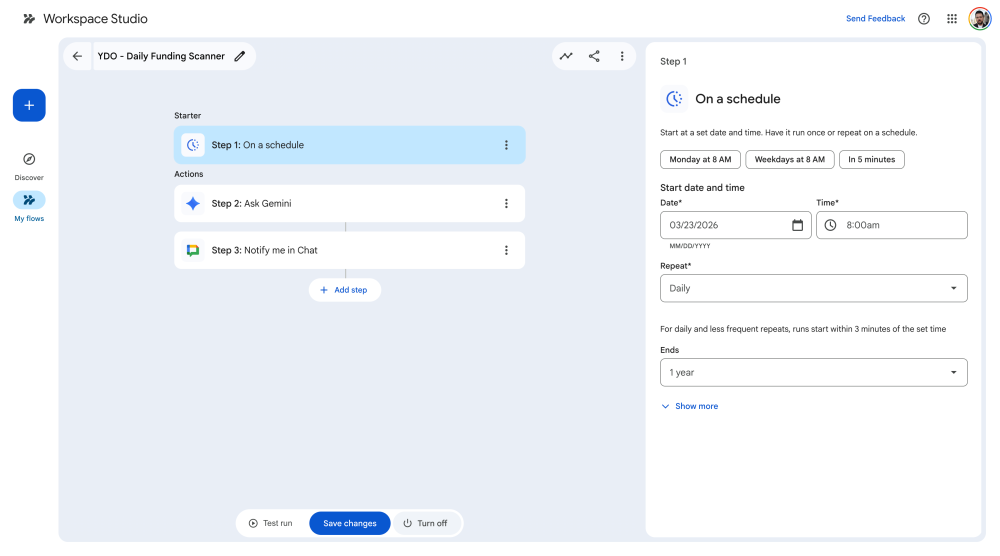 Screenshot 1: Google Workspace Studio - workflow automation for scanning funding opportunities
Workflow 1: The daily funding scanner
Picture a program coordinator at a small youth organization, let's call it Youth Development Organization (or YDO). Every Monday morning, she opens the same twelve websites to check for updates: international foundations, regional grant portals, and a couple of sector newsletters. It takes close to an hour. Most weeks, she finds nothing actionable. Some weeks, she misses a deadline she would have caught if she had checked on Thursday instead.
This is not a time management problem. It is a workflow problem. The task is real, recurring, and necessary, but it is also perfectly suited to automation. The sources are fixed. The filter criteria are knowable. The output is always the same: a list of relevant items with titles, descriptions, deadlines, and links.
Here is what that workflow looks like when automated for YDO.
What it does: At 8:00 AM each day, Gemini reads four RSS feeds (Really Simple Syndication) of funding sources, identifies grants and calls for proposals published in the last 24 hours relevant to youth development, and posts a structured digest to a Google Chat space.
Three steps in Workspace Studio:
1. On a schedule: triggers daily at 8:00 AM.
2. Ask Gemini: runs a structured prompt across the four feeds.
3. Notify me in Chat: posts the output to a designated Chat space.
The prompt in Step 2 follows the 7-part framework from our previous article, including the role, objective, methodology, output format, constraints, uncertainty handling, and verification.
See the full prompt here and copy it to adapt to your own thematic focus.
The digest arrives in Chat each morning as a numbered list: issuer, one-sentence description, grant amount, deadline, direct link. YDO's coordinator scans it in five minutes instead of an hour, and clicks through only to opportunities that clearly match.
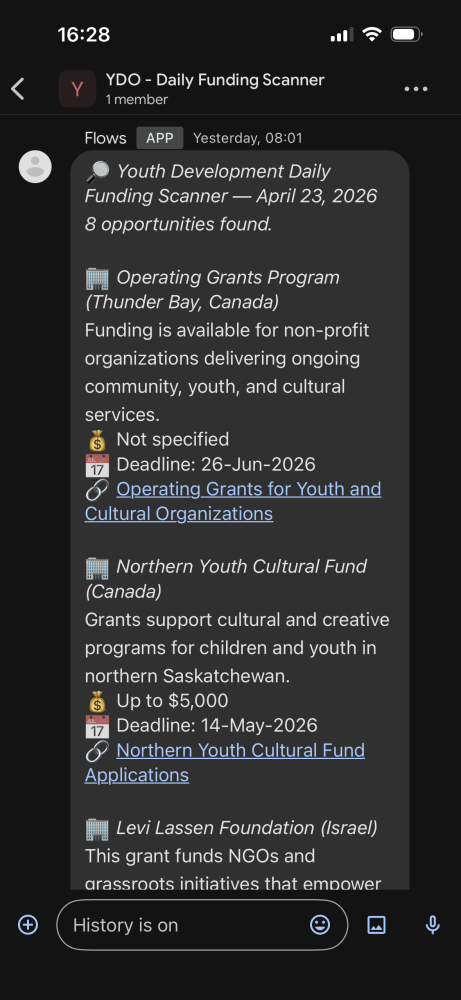 Screenshot 2: Google Chat message with Workspace Studio output
Limitations you should know about before building this.
The biggest one: Workspace Studio cannot meaningfully browse the open web the way a human can. It reads structured content well (like RSS feeds, in which Gemini can read titles, dates, and body of text with ease), but regular websites (dynamic pages, login-gated portals, anything that relies on JavaScript) are largely out of reach. The workaround we used is RSS feeds. Four of the major funding aggregators we wanted to scan publish RSS, which made them accessible. Sites that don't publish RSS cannot be scanned by this workflow, which for non-technical CSOs is the single biggest constraint on Workflow 1's usefulness. If your most important funding sources are not RSS-enabled, this workflow in its current form will not cover them. The right response is to either supplement with manual scanning or build the same logic in a tool with real browsing capability.
The second limitation: Gemini occasionally misreads deadlines or grant amounts. Treat the digest as a shortlist, not a verified record. Click through before acting.
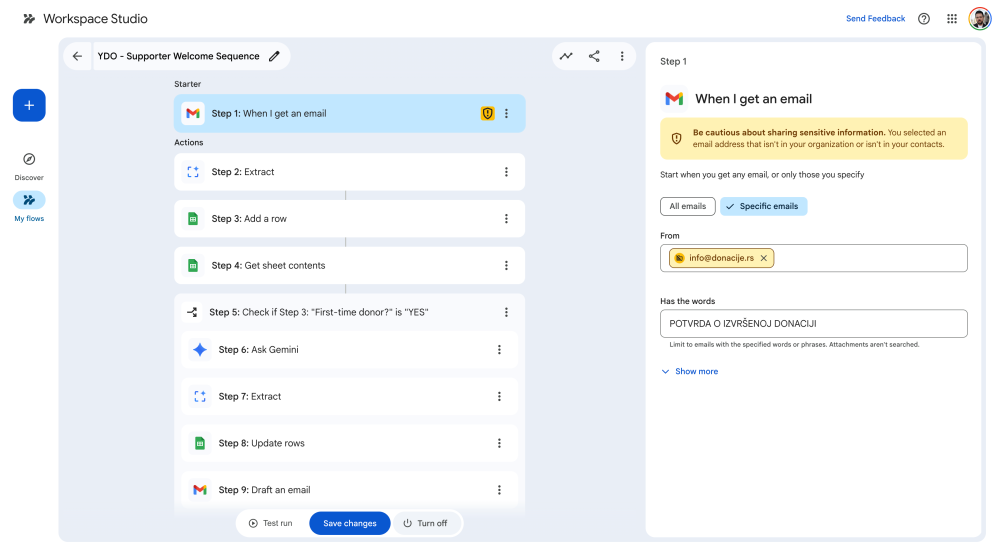 Screenshot 3: Google Workspace Studio trigger panel
Workflow 2: The first-time supporter welcome sequence
Picture a fundraising manager at YDO. Every time a donation comes in, she gets a notification email. She means to reply the same day with even a personal thank you, something that references the specific campaign the person supported. Some days she manages it. Other days there are three other things due, and by the time she gets back to it, four days have passed. The supporter has not heard anything.
She also knows she should follow up with a beneficiary story, share impact and finances, invite them to meet the team, and eventually ask them to become a monthly supporter. She has thought about building that kind of structured sequence. She has never found the time.
This is not a commitment problem. It is a capacity problem. The sequence is valuable, predictable, and entirely definable in advance, which means it can be automated.
The setup. For this to produce emails that feel personal rather than templated, two pieces of infrastructure sit behind the workflow. The first is a supporter CRM, a Google Sheet with pre-built formulas that automatically mark first time versus repeat supporters, calculate the send date for each email in the sequence, and track which emails have been drafted or sent. The second is an organizational reference document, updated quarterly, containing YDO's founding story, beneficiary stories, impact metrics, and financial breakdown. The reference document is what lets Gemini ghostwrite emails that sound like they came from the executive director rather than from an AI trained on general nonprofit copy. Open both documents to check how they're structured so you can reuse them later.
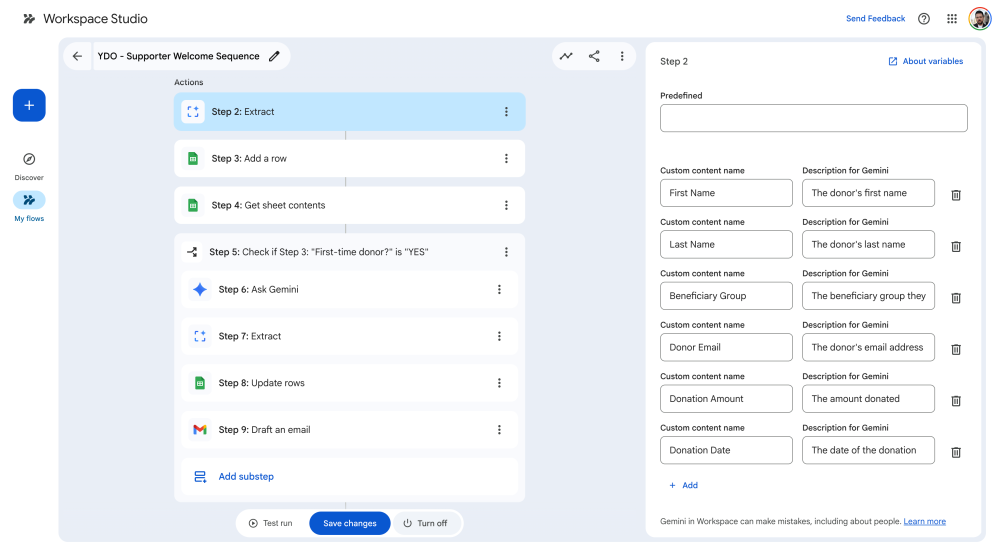 Screenshot 4: Google Workspace Studio Extract panel
What the automation does: When a donation notification arrives in Gmail, the automation extracts supporter data, writes it to the CRM, checks whether this is a first-time supporter, and if so, drafts seven emails designed to go out over 90 days. Starting from the first thank-you through to even a call to become a monthly donor.
For this article, we connect the trigger to donation notifications from Donacije.rs (a Serbian crowdfunding platform) to show it works against real emails. The same trigger logic works against any platform that sends a donation confirmation email: Stripe, PayPal, a website form, any giving platform.
Nine steps in Workspace Studio:
1. When I get an email: trigger on donation notifications from the giving platform.
2. Extract : Gemini pulls first name, last name, beneficiary group, email, donation amount, and donation date out of the notification email.
3. Add a row: writes the extracted data into YDO's supporter CRM.
4. Get sheet contents: reads the CRM to check whether this supporter has given before.
5. Check if first-time supporter = YES: the if/then logic that separates the sequence for new supporters from repeat supporters.
6. Ask Gemini: generates the seven-email welcome sequence using the ghostwriter prompt and organizational reference document.
7. Extract: parses Gemini's output into seven subject/body pairs.
8. Update rows: writes all seven emails into the CRM, each one placed in its assigned column next to the calculated send date.
9. Draft an email: creates the first email draft in Gmail, ready for same-day sending.
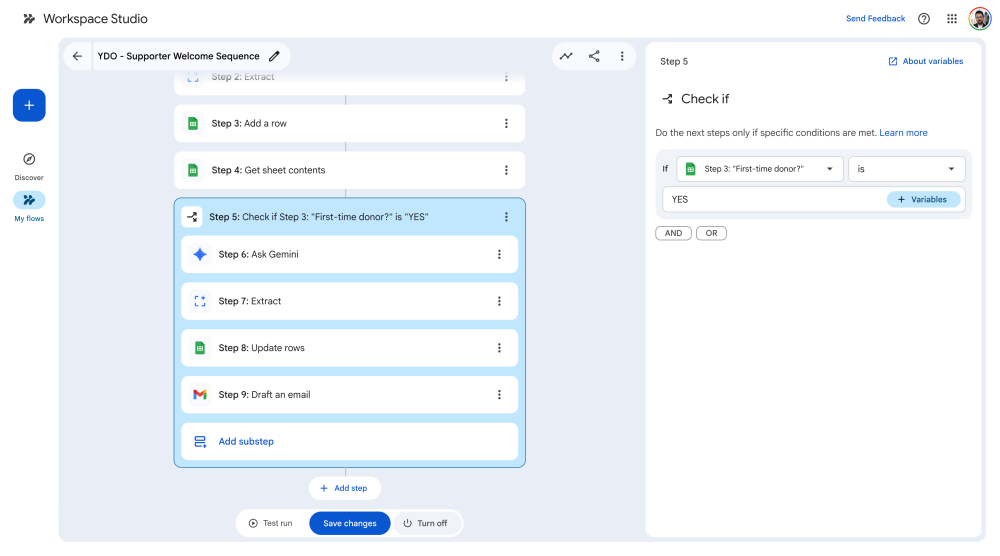 Screenshot 5: Google Workspace Studio Check if panel
Step 6 (“Ask Gemini”) is where the real work happens. The prompt follows the 7-part framework and ghostwrites all seven emails in a single response. From an immediate thank-you (Day 0) to a beneficiary story (Day 3), founding story and core beliefs (Day 10), motives survey (Day 21), transparency on impact and finances (Day 35), an open-doors meeting invitation (Day 60), and finally a monthly giving invitation (Day 90).
See the full ghostwriter prompt here.
The prompt works against a reference document structured in four clearly labelled sections, each mapped to a specific email in the sequence, and should be updated regularly. See the full reference here. The structure is the point: each email pulls only from its designated section, which keeps content consistent and prevents Gemini from blending sources across emails.
Once the automation runs, all seven emails sit in the CRM, lined up against their calculated send dates. See the full CRM template here. Copy it to your own Drive and adapt it; all the formulas will carry over.
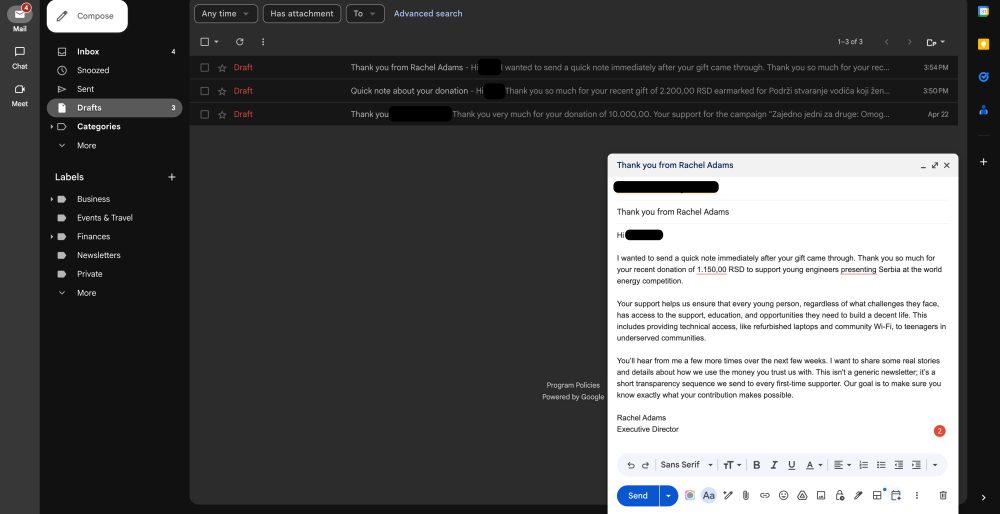 Screenshot 6: Email drafts created automatically through Google Workspace Studio
How the fundraising manager works with this? The automation drafts; she decides. Each morning she opens the CRM, filters for emails due that day, reviews each one, and sends. All seven emails are highly personalized out of the box, but the manager still holds the decision about what goes out.
This is partly a Workspace Studio limitation: the tool cannot schedule multiple outbound emails, so human send-off is necessary. But it is also a safety and credibility mechanism worth keeping even if the tool could automate it. Supporter communications are where reputational risk sits. A wrong name, a misread tone, a factual slip, all of those cost more than ten minutes of manual review. Keeping the human in the loop is the right design, not a workaround in this case.
The logic behind both workflows
Neither automation removes judgment from the process. The digest identifies what to look at; the team decides what to pursue. The seven-email sequence provides structured drafts; a person reviews every one before anything reaches a supporter.
This is the right approach for organizations working with sensitive communities, limited resources, and reputational stakes. The automation handles the first draft of the tedious work. The last part stays human.
The same 7-part prompting structure from our previous article appears in both workflows, because the principles do not change when the context shifts from a chatbot conversation to a triggered workflow. Clear role, concrete objective, explicit methodology, defined output, honest constraints, stated priorities, built-in verification. That structure works whether you are writing a prompt into a chat interface or embedding it as the instruction set inside an automated sequence.
Studio's limitations are real and worth repeating one last time: no native multi-recipient sending, no scheduled outbound messages, stateless runs, limited web browsing without RSS. If your use case runs into those walls, the right move is to build the same logic in n8n, ActivePieces, Zapier, or Make.com. The thinking transfers. Only the tool changes.
The templates, prompts, and CRM linked throughout this article are yours to copy and adapt. Start with the workflow closest to a task you are already doing manually. Build it on an edge first. Iterate on the prompt. Once it works, look at what else in your organization follows the same pattern (predictable trigger, consistent steps, defined output) and decide what to automate next.
Agents will close more of the remaining gap eventually. For organizations ready to move beyond prompting, this is where to start.
Your Feedback Matters
What did you think of this text? Take 30 seconds to share your feedback and help us create meaningful content for civil society!

Update (September 2026): Since this article was published, Google Workspace Studio has added integrations, webhooks, and custom workflow capabilities. The strategic advice in this article remains valid, but some tool-specific limitations may have changed.
Disclaimers
This piece of resource has been created as part of the AI for Social Change project within TechSoup's Digital Activism Program, with support from Google.org.
AI tools are evolving rapidly, and while we do our best to ensure the validity of the content we provide, sometimes some elements may no longer be up to date. If you notice that a piece of information is outdated, please let us know at content@techsoup.org.
This content was created with AI assistance and has been reviewed and edited by Miloš Janković.