ChatGPT Projects is the feature that fixed that for us. If a single chat is a sticky note, a Project is the whole desk: chats, files, and instructions sitting together in one place, all sharing the same context. This guide shows how we set one up, and how we used it to run a real fundraising campaign as a team.
Who Is This Guide For?
This guide is for NGO leaders, program managers, and communicators who already use ChatGPT for everyday questions and quick rewrites and now want it to support larger shared work (a campaign, strategy, or grant proposal) without scattering into chaos. You do not need to be technical. If you can create a folder on your computer, you can create a Project.
Objectives
By the end, you should understand when to use a Project, how to set one up, and how to use it with a team without creating data-security risks.
Why Use ChatGPT Projects
An ordinary chat is excellent at finishing one task. A Project is a dedicated space for work that keeps evolving: chats, files, instructions, and context stay together instead of being scattered across separate conversations.
For an individual, the benefit is mostly about not repeating yourself. You upload your strategy and brand documents once, write your instructions once, and every chat inside the Project already knows what you want and need.
For a team, the benefit is bigger. Projects can be shared, and ChatGPT can draw on everything inside a shared Project, the chats, the files, the instructions, so each person picks up where the others left off instead of starting from a blank page. A shared Project turns that private cleverness into something the whole team can stand on.
An example I am going to be using in this guide is a fundraising campaign which is a perfect fit for ChatGPT Projects. Typically, more than one person will be working on it, each needs to perform a little bit different tasks but everyone needs the same context. Accordingly, the campaign by Digivia, aimed to raise funds for our tech support for CSOs as well as our operations. These are not easy topics. We needed to develop the right messaging, do appropriate research into people’s attitudes towards helping nonprofits and using technology, and establish the right target groups. Without AI, this would be impossible in our small team of four with very limited fundraising experience and even more limited capacities.
Projects are now available on every plan, including Free, and sharing is open to everyone. Plans mainly differ in file limits and, for business plans, admin and compliance controls.
One honest limit, the same one as always: a Project will not rescue a messy campaign. AI amplifies the process you already have. If your team has no shared sense of audience, goal, or tone, a Project will simply help you produce that confusion more efficiently: in one tidy place.
How To Use ChatGPT Projects
Setting Up a Project
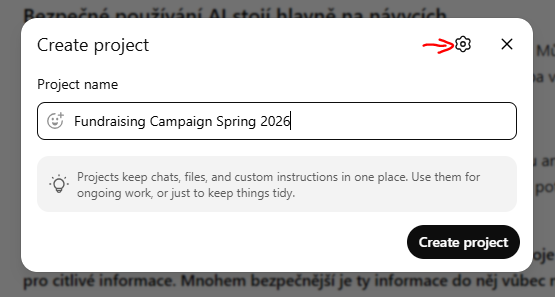
In ChatGPT, open the left-hand menu and create a new Project. Give it a clear name. For example, ours was simply “Fundraising Campaign 2026”. Naming matters more than it looks: a Project called “Stuff” ages badly.
When you create the Project, you also choose its memory setting (under the gear icon): default or project-only. Project-only memory keeps ChatGPT drawing context only from the conversations inside this Project and stops anything here from leaking into your other chats. For a campaign that touches donors and partners, we chose project-only, as it keeps the work in its own sealed box. (If you later share the Project, ChatGPT switches it to project-only automatically, which is a sensible default.)
Giving It a Brief: Instructions and Files
Before chatting, set up the context. This is the step most people skip, and it is the one that makes everything afterwards sound like you.
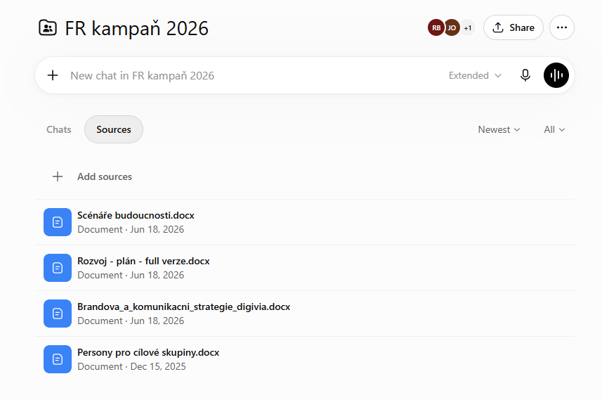
Two things go in here. First, files. Open the Project, click on Sources, and upload your reference material, such as your case for support, your brand and tone-of-voice guidelines, and your strategy. ChatGPT then uses these as the factual ground for every chat.
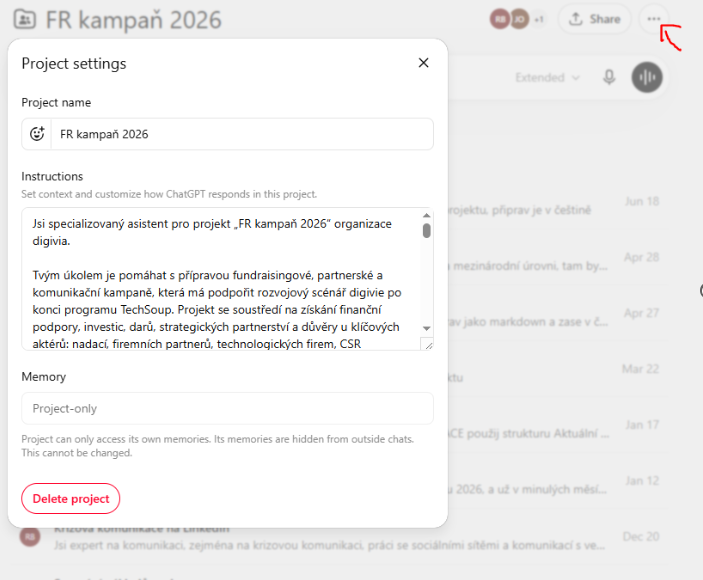
 Second, instructions. In the Project settings (under the three dots icon), write a short brief (8000-characters limit): who the campaign is for, the tone we use, the words we love, the words we ban (or reference your branding manual), and what a good result looks like. Think of it as onboarding a new colleague once, instead of re-explaining the job in every conversation.
If this sounds familiar, it is the same idea as a Custom GPT from our earlier article. The difference is that here the instructions wrap around one specific piece of work, rather than a repeatable role.
The Campaign, Chat by Chat
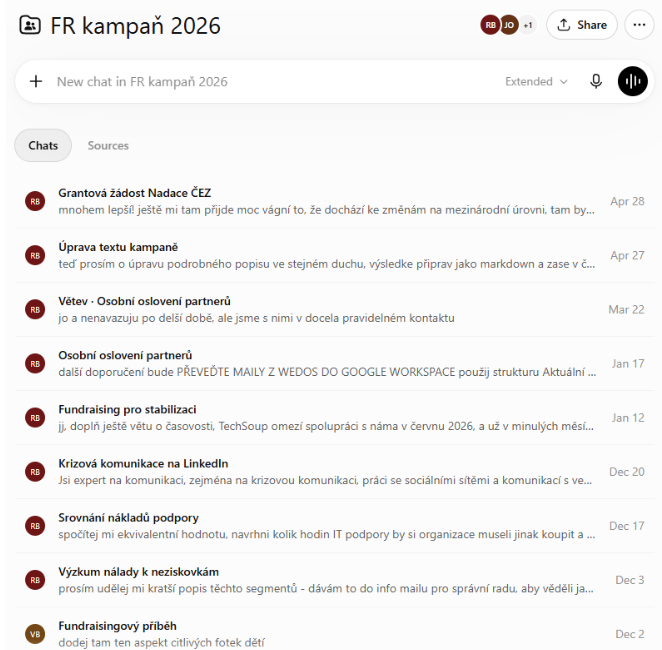
Here is where Projects earn their keep. Instead of one enormous chat that slowly turns to soup, we opened a separate chat for each strand of the campaign, with all of them sharing the same files and the same brief.
Chat 1: Research. We began by asking ChatGPT to help us understand how the public sees the sector, what the public’s attitude to technology is, and whether there is crossover between the two: the common attitudes, the suspicions, the hopes. Because this is factual and public-facing, we treated the output as a first draft and checked the important claims against real sources. Also, we used the most advanced model (Pro) for this task. We chose Pro because this was the most judgment-heavy part of the work: it needed to synthesize messy public attitudes, spot patterns across different sources, and hold a more nuanced line of reasoning than Auto, Instant, or Thinking would reliably provide for quick drafting tasks.
Chat 2: Target groups and messaging. We fed that research into a new chat and asked it to turn the findings into two or three clear audience personas, plus the core message for each. Because both chats lived in the same Project, the second one already had the first one’s context. No copy-pasting research between windows.
Chat 3: The landing-page copywriter. A dedicated chat acting as our copywriter for the campaign landing page on our website and our fundraising portal. It already knew our tone and audience from the brief, so the drafts arrived sounding like us, not like a generic charity that has never met its own donors.
Chat 4: The email copywriter. A second copywriter chat, this one for the donor email sequence, consisting of the first appeal, the gentle reminder, and the thank-you. Keeping it separate from the landing-page chat kept each one focused, while both still drew on the same campaign message.
Chat 5: Personalizing for contacts and partners. We also wanted tailored messaging for existing contacts and partners. This is useful but sensitive: contact lists contain personal data. Instead of uploading real names and emails, describe partner types and ask ChatGPT to draft tailored angles for each. For anything personal or confidential, use an approved business-tier tool that doesn’t require data training and ensures safe data processing. And always minimize the data you share to those absolutely necessary.
Chat 6: A sceptical-donor persona. A chat that role-plays a cautious major donor and pokes holes in our appeal before a real donor does. Sometimes the most useful thing AI gives you is not an answer, but a rehearsal partner.
Other topics worth separate chats might be:
A social repurposing chat. Turning the finished landing page into short posts for our channels, in the right tone for each one.
A measurement chat. Drafting our campaign KPIs and a simple post-campaign report template, so we knew in advance what “success” would actually look like.
Working as a Team
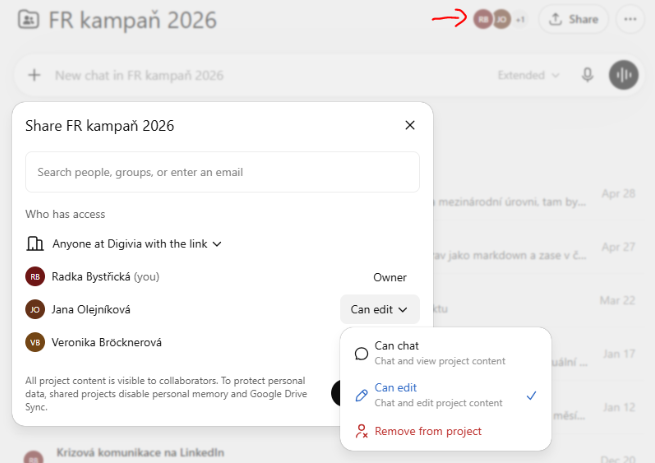
This is the part that turns a personal workspace into a team one. On supported plans you can share a Project and invite colleagues, and everyone then works from the same files, instructions, and history.
There are two levels of access worth knowing. Chat access lets a colleague see and use the Project’s chats, files, and instructions. Edit access also lets them change the instructions, add or remove files, and invite others.
Collaboration is asynchronous, which suits busy NGO teams perfectly. People work in their own chats inside the Project, build on each other’s updates, and can even branch a colleague’s conversation to take an idea in a new direction without breaking the original. Different people, different chats, one shared context.
Keeping it safe
None of this removes the need for a little governance. Here is the short checklist you can use for any Project that touches real people:
Decide what may never be uploaded and write it down. This can include beneficiary data, safeguarding details, or anything in a special category (like sensitive data).
Prefer project-only memory for sensitive work, so the context stays in its box.
Use an approved, business-tier tool when personal or confidential data is involved and keep the inputs minimal. Free is fine for experimenting and generic drafting; individual paid plans add more capacity and stronger models, but business plans are the safer home for shared organizational work and features such as Projects.
Assign ownership: who maintains the brief, and who reviews output quality.
This is dull, and dull is the point. Boring governance is what stops the same avoidable mistake. For the longer version, see our data-security article.
Additional Resources
Beyond Basic Chat: The Moment ChatGPT Becomes Real Work: our companion article on the difference between Custom GPTs and Projects, and when to use which.
Before You Paste: A Practical Guide to Data Security When Using AI : our guide to keeping sensitive information out of the wrong places.
OpenAI’s official help page on Projects: for the current file limits and sharing options on your plans, which change from time to time.
A normal chat helps you finish one task. A Project helps your team carry one important piece of work all the way to the finish line together, and in one place.
Your Feedback Matters
What did you think of this text? Take 30 seconds to share your feedback and help us create meaningful content for civil society!

Disclaimers
This piece of resources has been created as part of the AI for Social Change project within TechSoup's Digital Activism Program, with support from Google.org.
AI tools are evolving rapidly, and while we do our best to ensure the validity of the content we provide, sometimes some elements may no longer be up to date. If you notice that a piece of information is outdated, please let us know at content@techsoup.org.
This content was created with AI assistance and has been reviewed and edited by Radka Bystricka.